Secure Messaging Portal
- Get Started
- Troubleshooting and FAQ
- Release Notes
- Patient Channel
- Triggers
- Technical Specifications
- Patient Facesheet
- Insights & Analytics
- Conversation Flows
- Campaigns
- SMS Basics
- Inbox
- Lines & Resources Requests
- Lines, Events, Resources
- Referrals
- AI Agents
- Add-Ons
- Users and Groups
- Platform Settings and Configuration
- Self-Rescheduling
- Recalls
- Artera Harmony Federal Edition
- Marketplace
Table of Contents
Secure Message Access - Patient-View Accessing a Secure Message 60-Minutes After DeliveryLogging into Artera without Secure Message Link - Patient View Patient Lock OutThis article discusses the patient's view when receiving a Secure Message from Artera. To learn about Secure Messages, click here.
Secure Message Access - Patient View
-
When the patient receives a message containing a secure link, they must click on the link contained in the message to complete the verification process and view the information. This link begins with "http://well.app" and concludes with a string of numbers and/or letters.
NOTE: The screenshot below contains a link sent to a test patient through an Artera demo environment, so the URL varies.
-
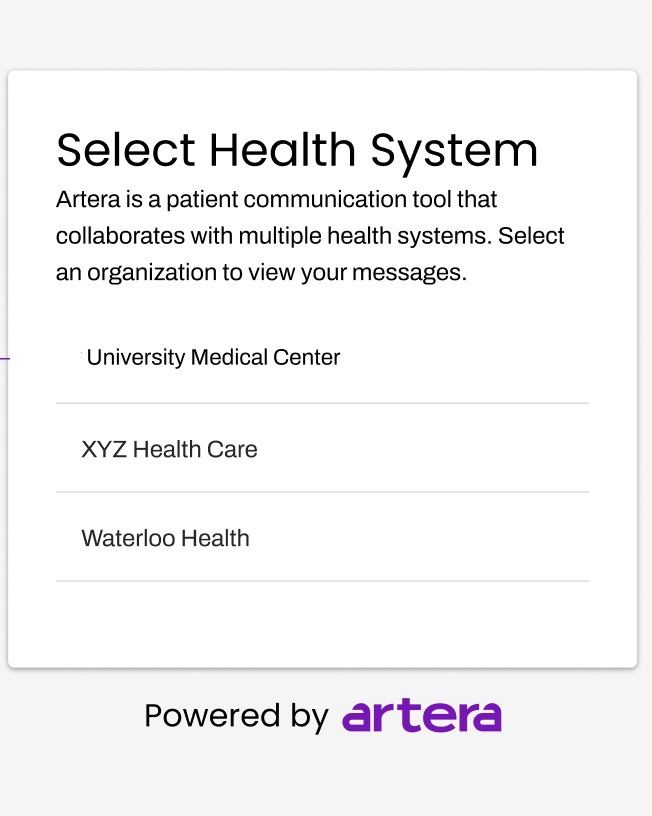
The patient sees a drop-down menu listing all organizations associated with their phone number and must select one to view their messages

-
Depending on your Default Settings, the patient will verify their identity with one of the options listed here.

-
Once they have verified their information, the patient will be taken to their "Messages" page. Here, they can select a message to view. Messages are sorted by date and displayed by Practice line name. In the below example, the patient has a Secure Message from one line in the organization, Test Line.

Accessing a Secure Message 60-Minutes after Delivery
Patients who access a Secure Message link more than 60 minutes after delivery must enter a 5-digit confirmation code sent to their mobile device, in addition to their standard verification information.
This same confirmation code requirement applies when a patient tries to open an older Secure Message after a new one has been sent to them.
-
The patient receives a message containing a Secure Link, but waits 60+ minutes to access the message.

- The patient clicks on the link and is routed to the Patient Sign In page. Here, they are asked to enter in their 10-digit phone number to receive a confirmation code.
.png)
- The patient is sent a confirmation code to their mobile device. This code is valid for 30-minutes.
-
The patient enters the confirmation code into the Confirmation Code window.
.png)
-
The patient is presented with the organization(s) of which their phone number was located in and must select an organization from the drop-down menu to view their messages.

-
The patient is asked to verify their identity with the options listed here, based on your Default Settings.

- The patient is then routed to the message sent to them.
NOTE: The label displayed at the top of the message page is the name of the Enterprise and the name of the line used to deliver the message. To edit how the line name displays to patients, edit the line.

Logging into Artera without Secure Message Link - Patient View
Patients who access the Secure Messaging Portal by visiting app.wellapp.com/login will experience a slightly varied workflow compared to patients who access the Secure Messaging Portal via the Secure Link sent to their mobile device.
- The patient logs out of the Secure Messaging Portal and chooses to log back in or the patient navigates to app.wellapp.com/login.
-
The patient enters their phone number on the Patient Sign In page and selects Continue.
.png)
- The patient receives a confirmation code to their mobile device. This code is valid for 30-minutes.
-
The patient enters the confirmation code into the Confirmation Code window.

-
The patient is presented with the organization(s) their phone number was located in and must select an organization to view their messages.
-
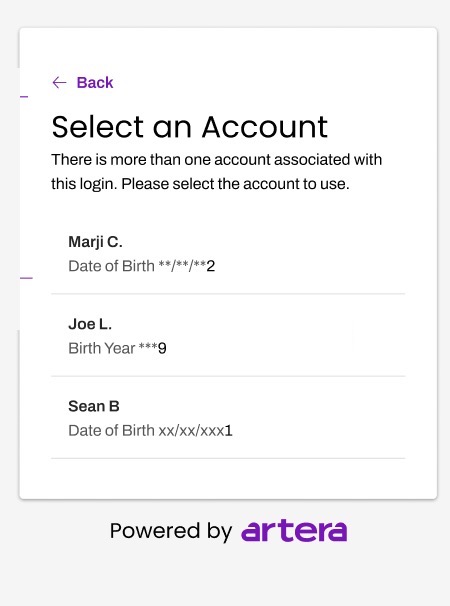
The patient is presented with a list of people associated with that organization that share their same phone number and must select their patient account. The first name, last initial, and partially redacted date of birth is displayed for each account.
-
The patient is presented with a Verify Patient Identity window and must verify their identity with one of the options listed here. The identification verification varies depending on what is set up for the Patient Sign-In Security Criteria Default Setting.

- Once their identity is successfully verified, the patient is routed to their Secure Messaging Portal.