Referrals Reporting
- Get Started
- Troubleshooting and FAQ
- Release Notes
- AI Agents
- Patient Channel
- Triggers
- Technical Specifications
- Patient Facesheet
- Insights & Analytics
- Conversation Flows
- Campaigns
- SMS Basics
- Inbox
- Lines & Resources Requests
- Lines, Events, Resources
- Referrals
- Add-Ons
- Users and Groups
- Platform Settings and Configuration
- Self-Rescheduling
- Recalls
- Artera Harmony Federal Edition
- Marketplace
Table of Contents
Referral Message Performance Dashboard Referral Message Performance Dashboard Tiles Referral Message Type by DayReferral Acceptance Rates and CountReferrals DrilldownReferral Triggers DeliverabilityReferrals Created and ReachedReferral Reach MetricsReferrals not Reached by Communication TypeOpt OutsRolling Response BreakdownReferral Acceptance MetricsDeliverability ReportsReferral Performance ReportReferral reporting is generated through Artera Analytics Plus. The Referral Message Performance Dashboard and the Referral Performance Report are available for analyzing your Referral outreach metrics.
The Referral Message Performance Dashboard and the Referral Performance Report must first be added to your Enterprise's Looker folder. If you are an Analytics Plus customer and do not see these reports in your folder, connect with your Customer Success Representative to request access.
NOTE: The Referral Message Performance Dashboard is available to all Referrals Management customers. The Referral Performance Report is a separate report and is only applicable to customers with an active HL7 ZF1-8 feed. An Artera representative will work with you to ensure your Referrals integration meets Artera's requirements to leverage the Referral Performance Report.
Referral Message Performance Dashboard
The Referrals Message Performance Dashboard tiles include Referral Drilldowns, Referral Reach, and Referral Acceptance Metrics.
Referrals Drilldown: These tiles provide a comprehensive look at your referral data, covering Locations, Providers, and detailed breakdowns by procedure, type, and diagnosis. You can also monitor high-level metrics for Referral Trigger deliverability and overall Referral Reach.
Referral Reach Metrics: Explore Referral Reach by examining unreached Referrals, opt-outs, response breakdowns, and message rates.
Referral Acceptance Metrics: These tiles speak to the acceptance rates of Referrals and how many messages to the patient were needed to solicit that response.
Filters
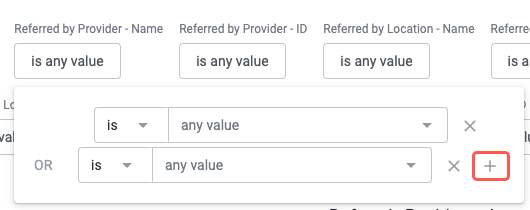
This report allows you to set multiple report-wide filters including "Created Date" and "Speciality".
For Created Date and any other date range, the start date is included and the end date is not, so the range leaves out the last day you entered. Click here to learn more. You can choose one or more options for the filters. Use the + icon to add additional OR filter values.
Referral Message Performance Dashboard Tiles
These tiles provide a high-level overview of Referral message types, acceptance rates, and the related to/from Referral Locations.
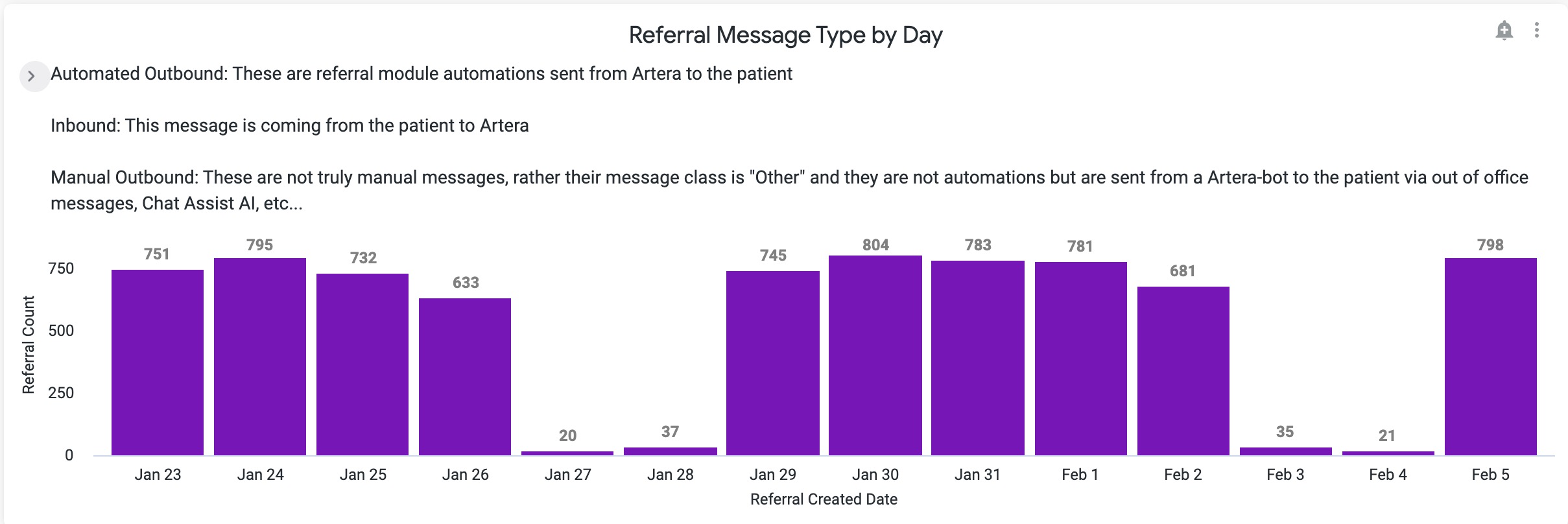
Referral Message Type by Day
This bar chart shows the distribution of Referrals communication through the following message classifications:
Automated Outbound: These are Referral Triggers sent from Artera to the patient.
Inbound: This message is sent in from the patient.
Manual Outbound: These are automated messages sent from Artera to the patient that are not Referral Triggers and are not manual outbound messages from staff to the patient. Instead, these are messages sent from Artera to the patient like After-Hours Auto-Responses, Conversation Flows, Holiday Hours, etc.
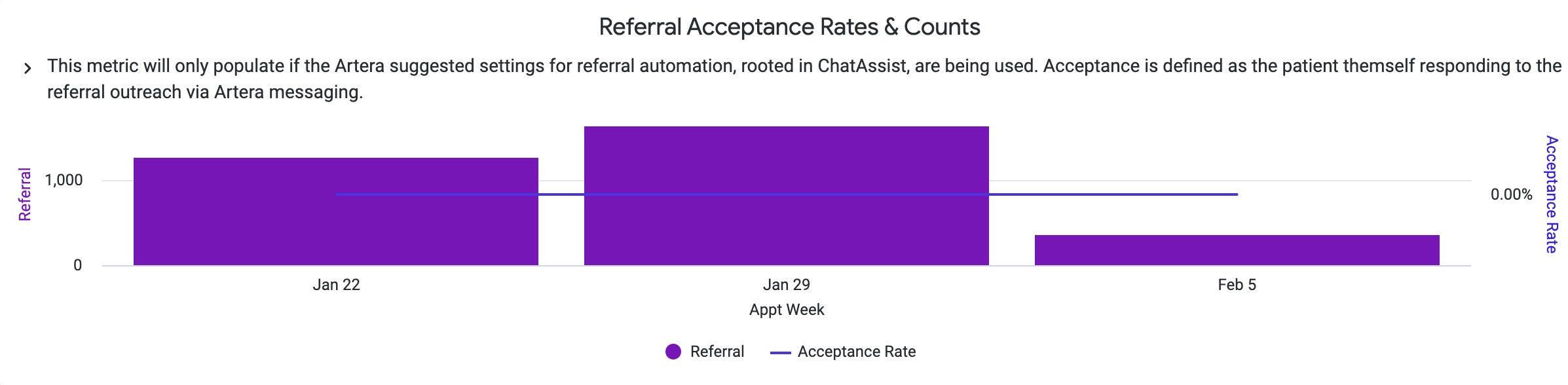
Referral Acceptance Rates & Counts
This bar chart is only relevant for customers who use Conversation Flows as part of their Referral Trigger build. "Acceptance rate" is defined as a patient responding to the Referral Conversation.
Referrals Drilldown
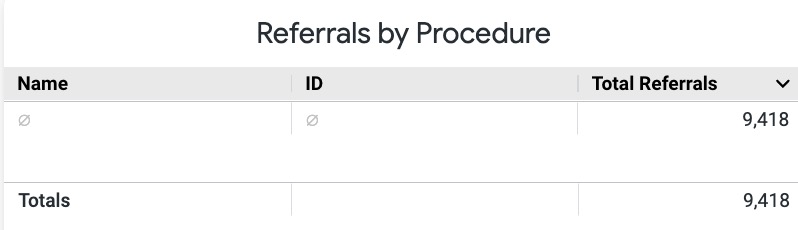
These tiles include information about the to/from referral Locations, to/from referral Providers, and further breakdown referrals by Procedures, Types, and Diagnoses. You will also view Referral Trigger deliverability and Referral Reach at a high-level.
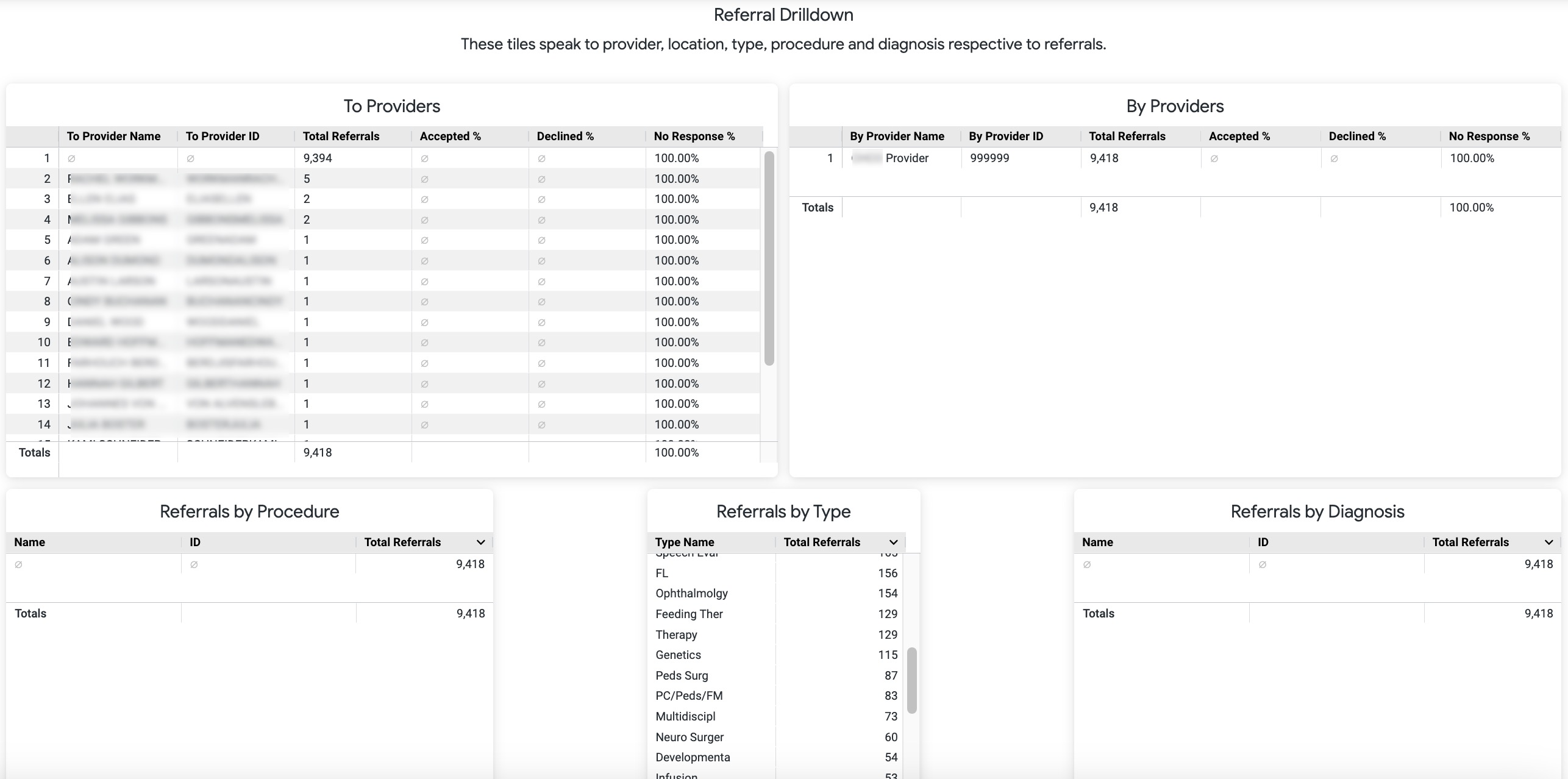
NOTE: If your organization does not collect one or more of these data points, the tile will display the total number of Referrals for the selected timeframe.
Referral Triggers Deliverability
This report displays Referrals based on the date the message was sent from Artera, instead of the Referral created date that is used on the other reports. The Description column here contains the Trigger's description. You will also be able to see whether the message was sent via SMS, voice, or email and if the message was delivered successfully.
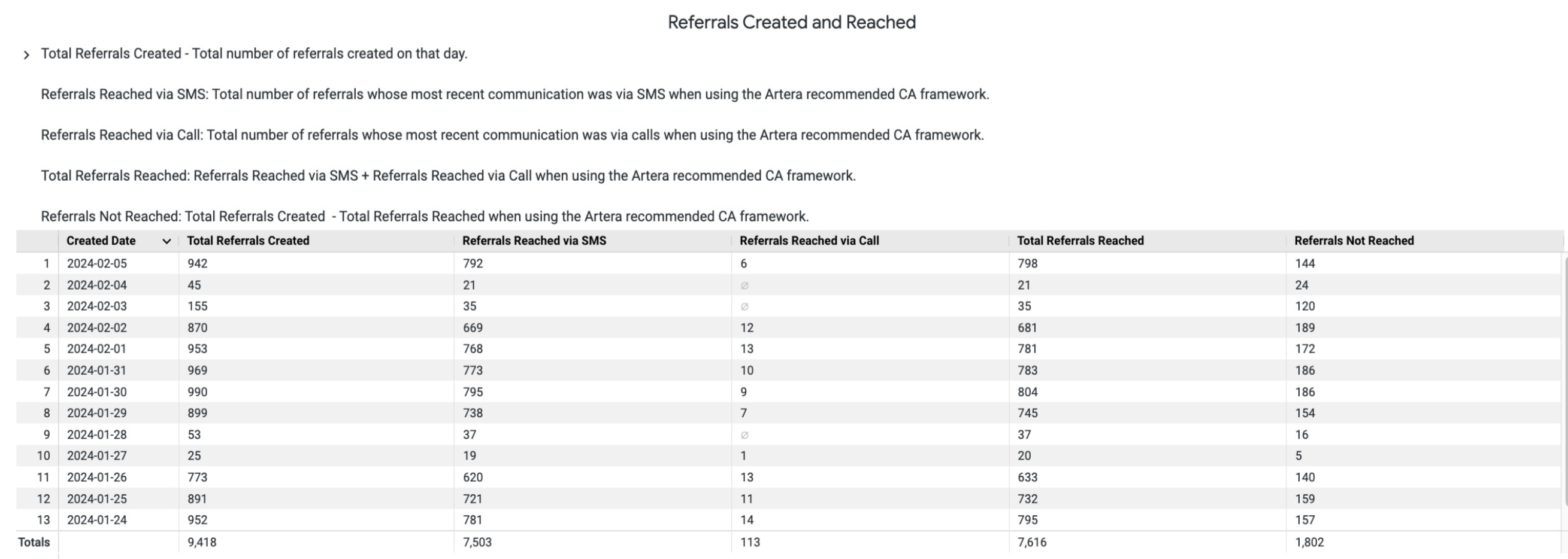
Referrals Created and Reached
Total Referrals Created: Total number of referrals created that day.
Referrals Reached via SMS: Total number of referral outreaches sent via SMS.
Referrals Reached via Call: Total number of referrals sent via phone call.
Total Referrals Reached: Referrals Reached via SMS + Referrals Reached via phone call.
Referrals Not Reached: Total Referrals Created - Total Referrals Reached.
Referral Reach Metrics
Explore Referral Reach by examining unreached referrals, opt-outs, response breakdowns, and message rates.
Referrals Not Reached by Communication Type
These patients were not sent a message or phone call about their referrals. Drill into this report to understand why a patient was not contacted. Additionally, the referral may not be in an authorization or scheduling status that has been configured to receive Triggers e.g. doNotSchedule.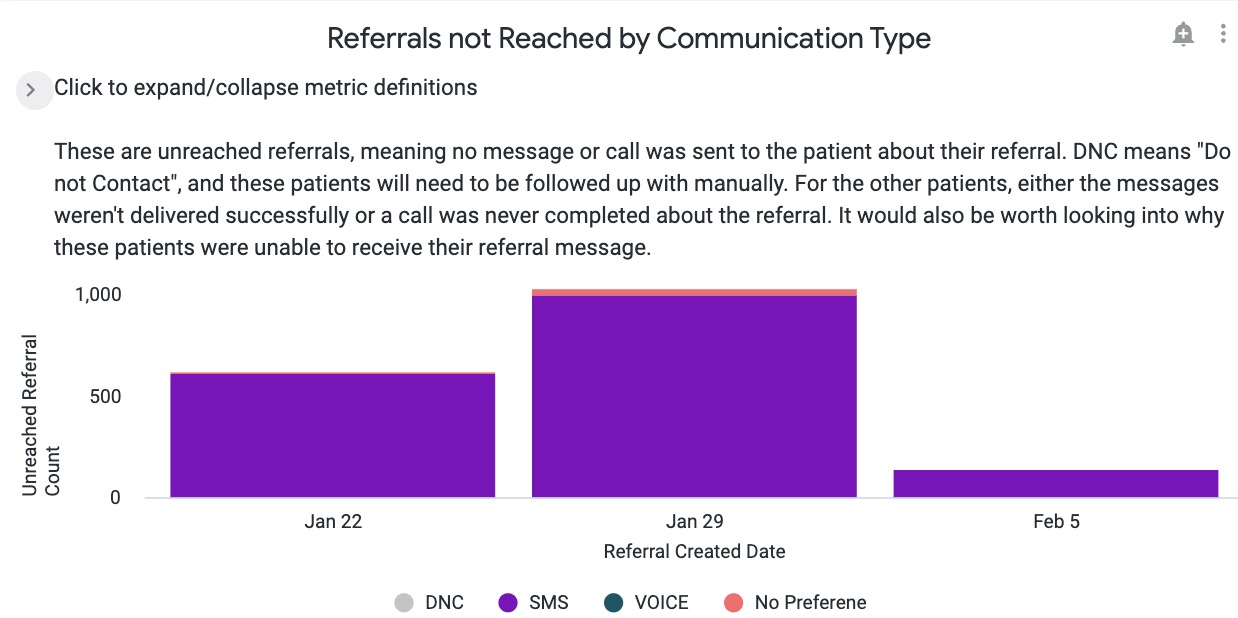
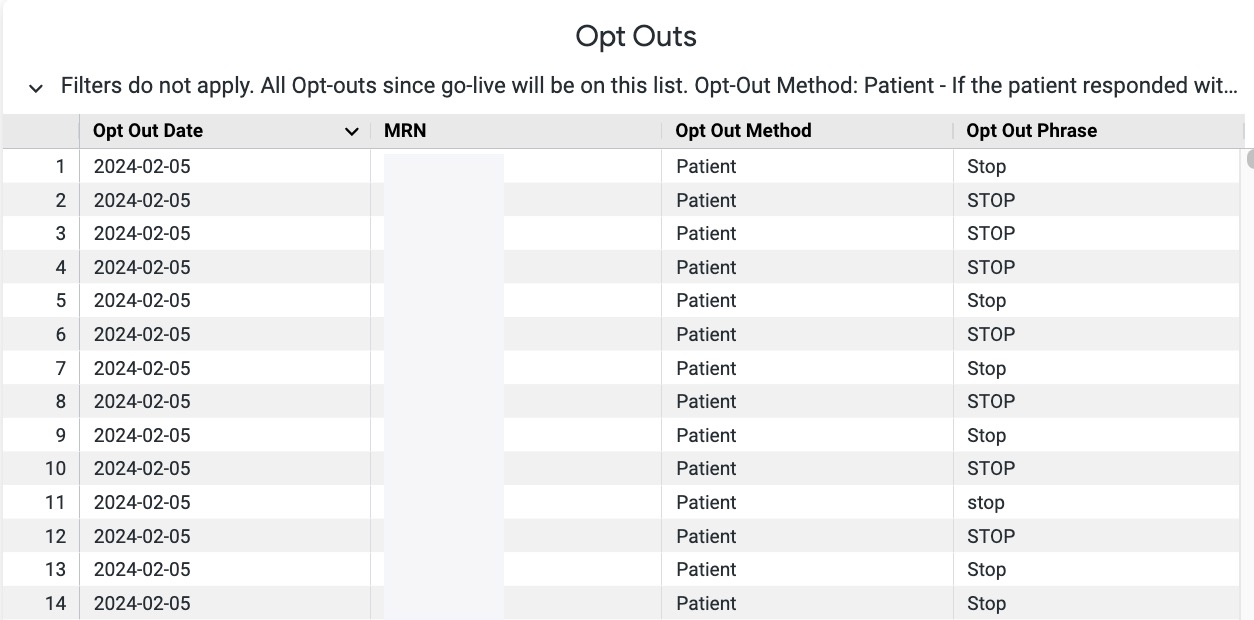
Opt Outs
These patients have opted out of receiving text messages from a certain phone line.
Rolling Response Breakdown
This report and the following tiles are only useful to customers leveraging Conversation Flows for their Referral Triggers. They describe the patient referral acceptance through response to the Conversation Flow.
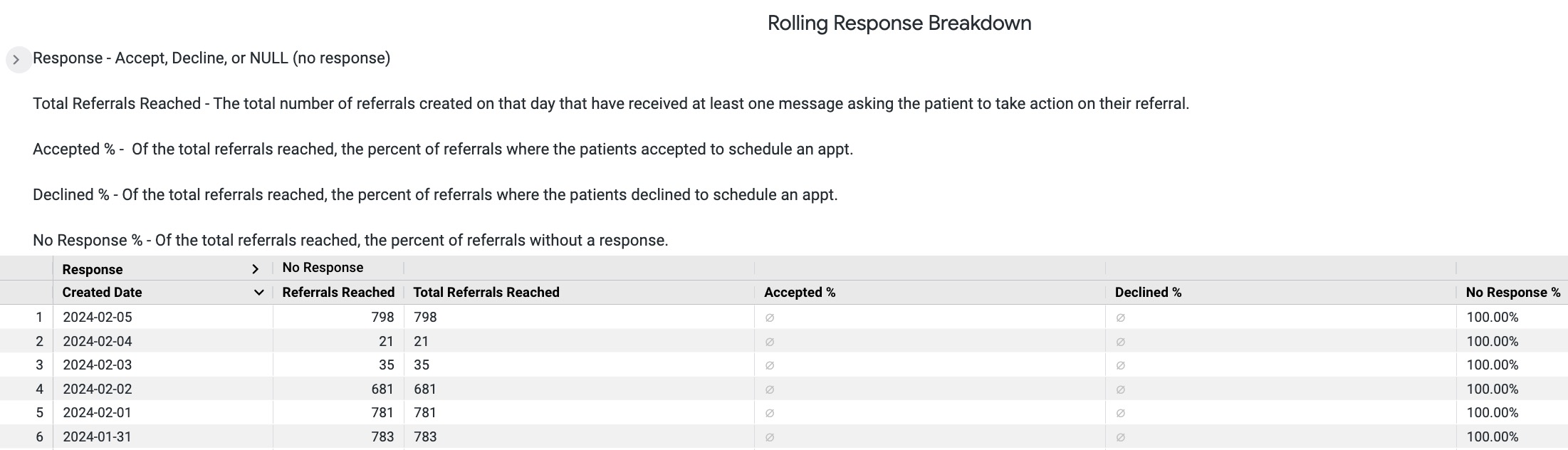

Referral Acceptance Metrics
These tiles speak to the acceptance rates of referrals and how many messages to the patient were needed to solicit that response. These reports are useful for customers who leverage Conversation Flows in their referral workflow, otherwise, most data fields will be blank.
Deliverability Reports
Another report that may be helpful when working with Referral data is the Deliverability by Trigger report. This is not part of the Referrals Message Performance Dashboard but can be used to further analyze your outreach data. This report is located in the #Artera Analytics Plus folder.
- Navigate to your Shared Folders and choose the #Artera Analytics Plus Folder.
- Scroll down to the Looks section and choose Deliverability by Trigger.
- This report displays all Triggers within your Enterprise. We recommend that you choose only the Referral Triggers that you are interested in from the Trigger Current Description Filter.
- You may also want to adjust the date range, depending on the timeframe you are looking to report on.
- Select Run to filter the report.
-
Review the status of the message to the patient and determined whether or not it was delivered. It may be helpful to follow up with undelivered and failed patients directly.

Call Statuses
Referral Performance Report
Referrals customers with access to Analytics Plus and an active HL7 ZF1-8 feed will also have access to the Referral Performance Dashboard. This report highlights a variety of different data points related to your Referrals outreach, including:
Referrals Sent (Count)
Appointments Scheduled (Count)
Appointments Completed
Scheduled Appointment Conversion Rate
Completed Appointment Conversion Rate
‘Dollars earned’ from completed Referral Appointments
Detail table of Referrals by Specialty
NOTE: This report is only applicable to the following customers:
Those leveraging Artera’s Referrals Management feature for Internal Referrals (Referrals that stay within your health system)
Those who have an HL7 SIU interface set up to trigger updates to Artera when an appointment is scheduled for a patient with an active Referral. Important: The Appointment ID in the Referral ZF1-8 interface must match the Appointment ID in the HL7 SIU interface
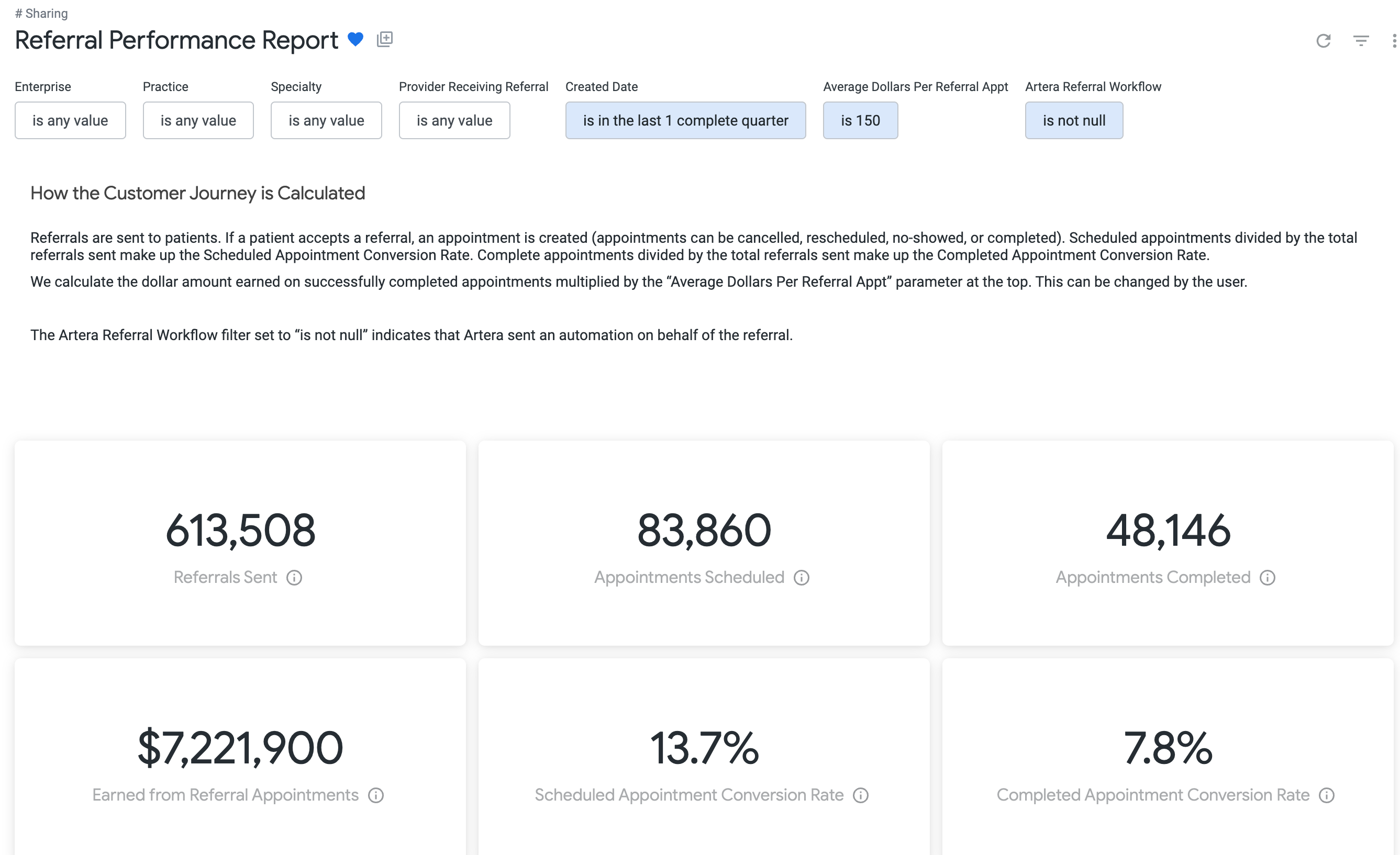
How are these Metrics Calculated?
Referral Sent (Count): The count of distinct Referral IDs for which an Trigger was triggered for (Trigger ID is not null).
Appointments Scheduled (Count): The count of distinct Referral IDs with either a linked external appointment ID associated or a Scheduling Status of "allVisitsScheduled" or "someVisitsScheduled." Remember, Artera receives appointment statuses via a customer's HL7 ZF1-8 Feed. If this number is low or 0, connect with your Customer Success Representative for troubleshooting.
Appointments Completed: The count of distinct Referral IDs with either an external appointment with the status of "completed" or a Scheduling Status of "allVisitsComplete" or "someVisitsComplete." If this number is low or 0, appointment statuses may not be updated appropriately with a "completed" status.
Scheduled Appointment Conversion Rate: Scheduled appointments divided by Referral Sent (Count).
Completed Appointment Conversion Rate: Completed appointments divided by Referral Sent (Count).
Dollars Earned: Projected dollar amount earned from completed appointments, calculated from the Appointments Completed count multiplied by the the Average Dollars per Referral Appt parameter.