Referral Triggers Queue
- Get Started
- Troubleshooting and FAQ
- Release Notes
- AI Agents
- Patient Channel
- Triggers
- Technical Specifications
- Patient Facesheet
- Insights & Analytics
- Conversation Flows
- Campaigns
- SMS Basics
- Inbox
- Lines & Resources Requests
- Lines, Events, Resources
- Referrals
- Add-Ons
- Users and Groups
- Platform Settings and Configuration
- Self-Rescheduling
- Recalls
- Artera Harmony Federal Edition
- Marketplace
Table of Contents
Referral Queues How to Create Referral Triggers Queues Referral Queue ManagementAdding Referral Triggers to a Referrals QueueFAQsWhen Practices send Referral messages to a large group of patients, the sudden surge in responses can overwhelm scheduling departments, leading to long hold times and a poor patient experience. Referral message throttling solves this by allowing your organization to control the pace of automated outreach, ensuring incoming response volumes remain manageable for your staff.
Referral Queues
Referral Queues allow your Enterprise to manage the volume of automated Referral messages sent to patients based on specific days and times. These queues hold messages until they are released according to the "throttle rate" set within your Trigger settings. You can configure multiple queues to accommodate the unique needs of different Referral Triggers.
NOTE: To enable Referral Triggers Queues for your Enterprise, please reach out to your Customer Success Representative. Once enabled, Referral Triggers Queues are only accessible by Enterprise Users.
How to Create a Referral Triggers Queue
Queue Details
-
Navigate to Settings > Enterprise Settings > Referral Triggers Queue.

- Select Create Queue in the upper-right corner.
-
Enter the Queue Details:

- Queue Name: We recommend using a unique name and including the word "Queue". This helps when configuring Referral Triggers and allows users to easily differentiate between different Queues.
- Queue Description (optional): A description of the Referral Trigger(s) that will be placed in this Queue.
- Call Center Timezone: The timezone for the location in which patient responses will be attended to.
- Select Continue.
Send Rate
Queued Referral messages are sent during the Days of the Week and Delivery Hours specified below. To ensure a steady flow, messages are distributed evenly based on your configured Hourly Send Rate.
-
Indicate whether Referral messages placed in the Queue should be sent to patients outside of a Practice's Hours. If disabled, messages will only be sent during the Practice's open hours, regardless of the Send Rate schedule set in the next step.

-
Select the days and delivery windows for your referral messages. Queued messages will only be sent to patients during these specified times.
 NOTE: Referral Queue Delivery Hours are subject to the TCPA Hours configured in your Referral Trigger. For instance, if your Queue is scheduled to start sending message at 7:00 AM but your Trigger's TCPA settings restrict sending until 8:00 AM, queued messages will not deploy until 8:00 AM.
-
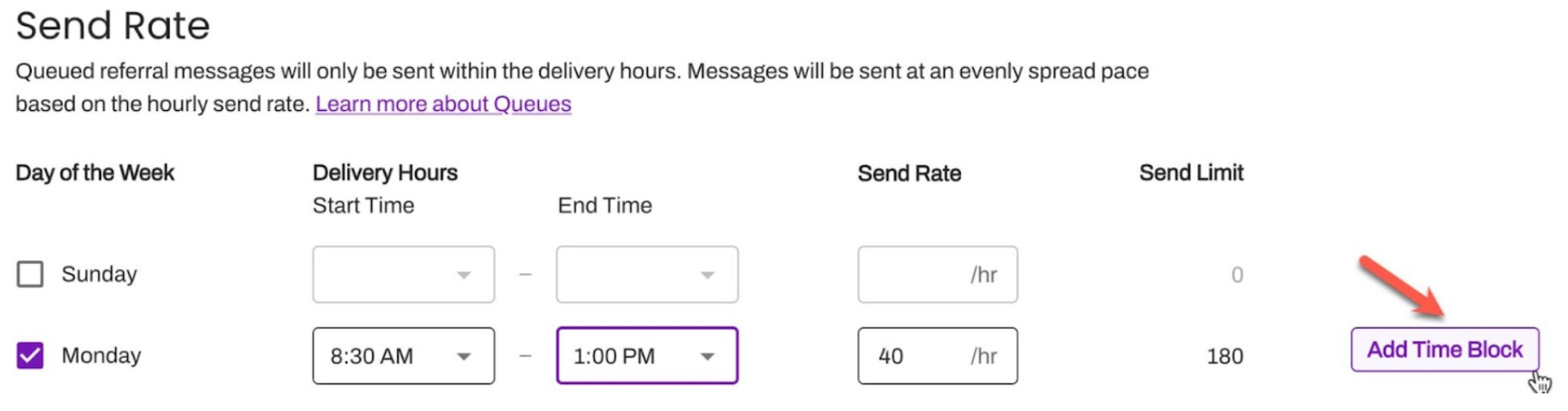
To pause message delivery when staff is unavailable, use Time Blocks to schedule when queued messages should resume. Hover to the far right of the desired day, select Add Time Block, and enter your preferred delivery window.
 To remove a Time Block, hover over it again and select Remove.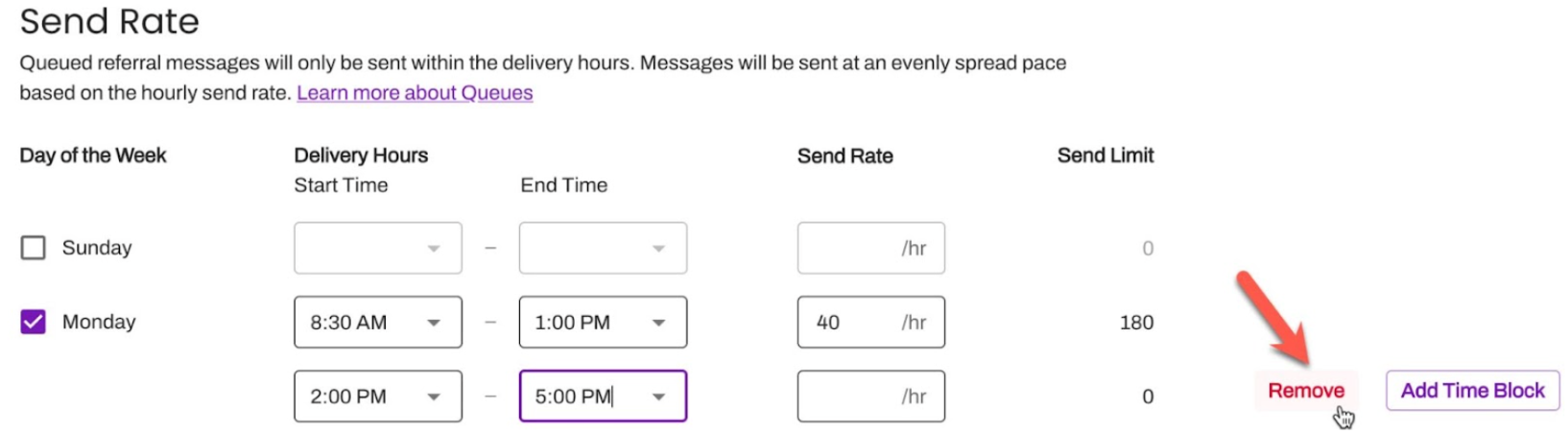
-
Set your Send Rate per hour for each delivery window. For example, a rate of 60/hr delivers one message every minute. To disable sending for a specific day, set the rate to zero.
NOTE: Choose a rate that aligns with your staff's capacity to handle incoming patient responses.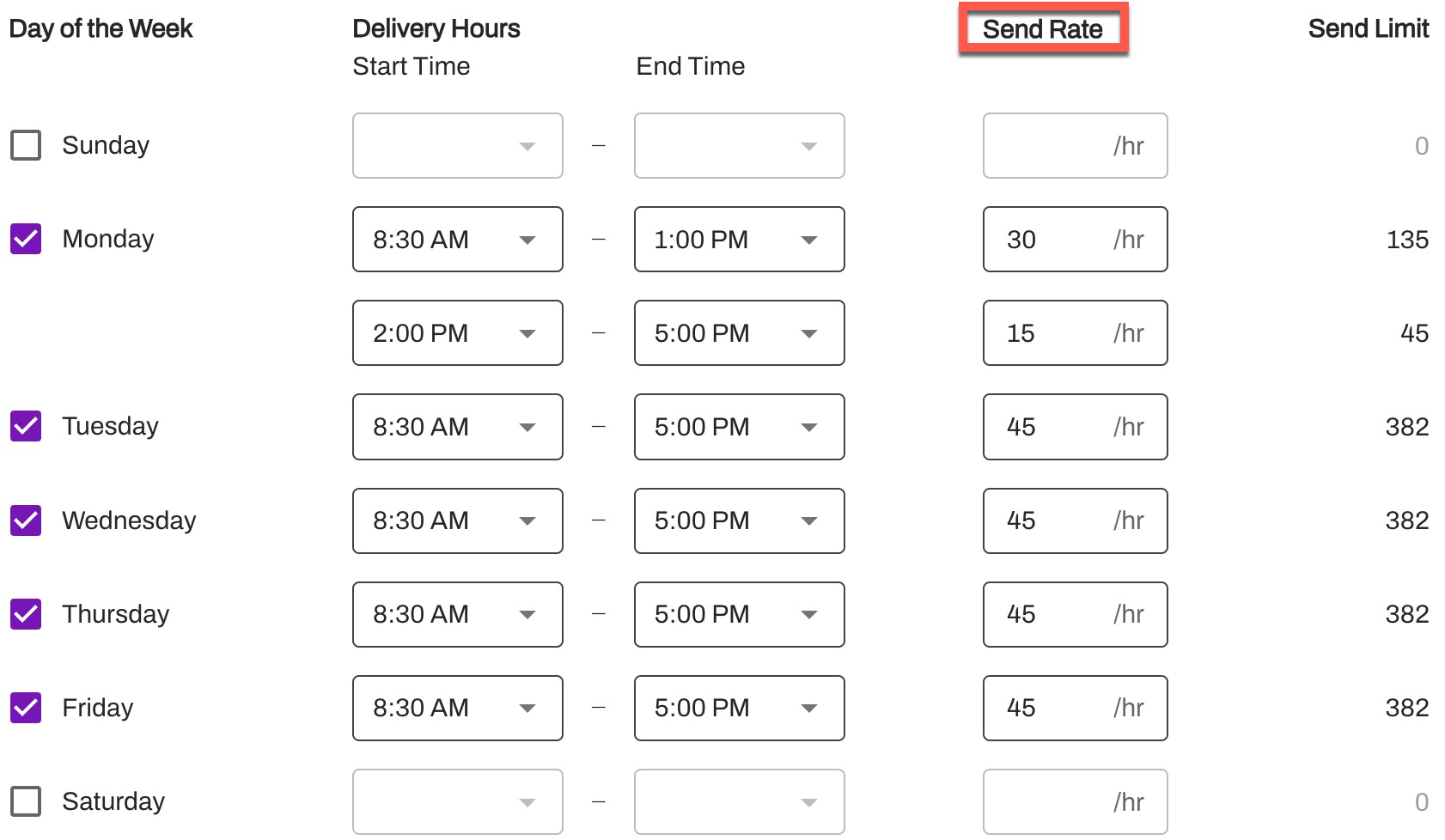
- The Send Limit is the total number of messages that can be sent during a time block. This is calculated as the total number of hours multiplied by the hourly Send Rate. For example: Delivery Hours are 9:00 AM to 3:00 PM (6 hours total) x Send Rate of 100/hr = Send Limit of 600 messages.
- Select Continue.
Preview
Review the details of your Queue. When ready, select Save Queue on the bottom right-corner of the page.
Upon saving, the Queue is auto-enabled and you will be routed to its management page. To disable or edit the Queue, select its three-dot Actions menu.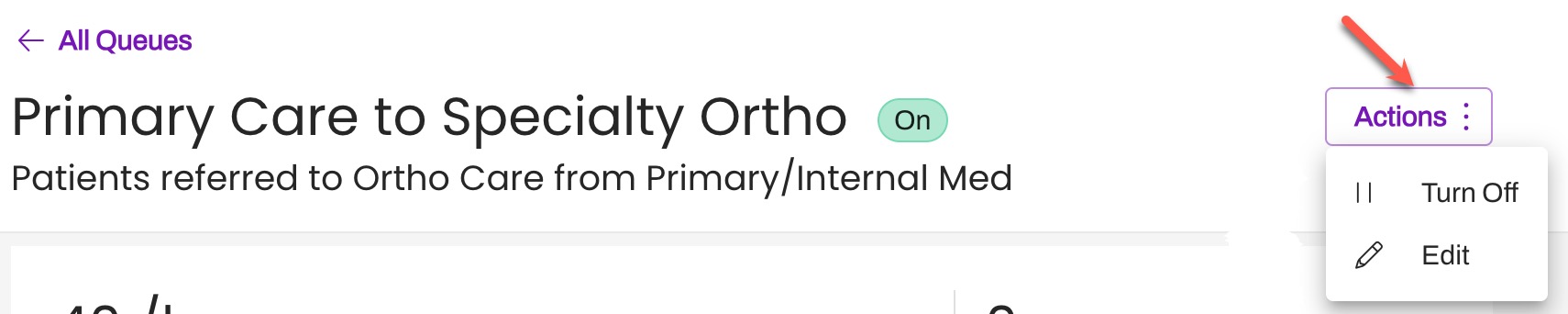
Referral Queue Management
-
Navigate to Settings > Enterprise Settings > Referral Triggers Queue.

-
You’ll be directed to the Referral Triggers Queue landing page. This displays all existing Enterprise queues, including their Status, Current Send Rate, and the number of Messages Queued.

- Select the hyperlink of the Queue you want to review.
-
The top of the page will display key information about the Queue:
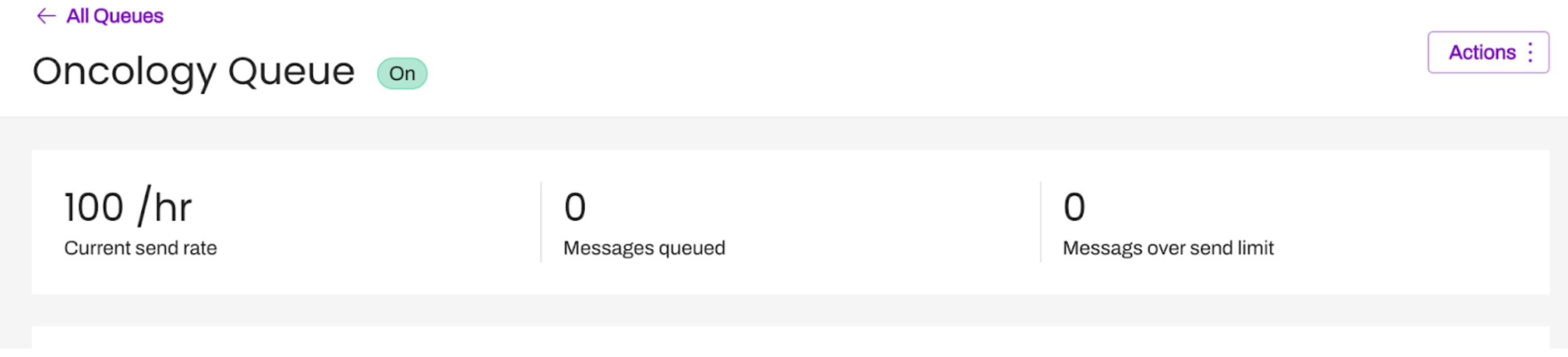
- Current send rate: This is the Current send rate. This is based on the Delivery Hours entry of the week and what day of the week it is.
- Messages queued: This is the amount of Referral messages in the Queue waiting to be sent
- Messages over send limit: This is calculated as Messages Queued subtracted by the Daily Send Rate Limit. For example: If Messages Queued is 500 and the Daily Send Rate Limit is 400, the Messages over sent limit will equal 100.
-
Any Triggers associated with that Queue are displayed in the Triggers section of the page. This section displays each Trigger's Status ("On" or "Off"), along with the number of Messages Queued for the Trigger.

-
To edit a Trigger, select the arrow in the Manage column. You will be taken directly to that Trigger's Timing step, where you can update the Queue Assignment as needed.

-
To edit a Trigger, select the arrow in the Manage column. You will be taken directly to that Trigger's Timing step, where you can update the Queue Assignment as needed.
Adding Referral Triggers to a Referrals Queue
Once your Queue is created, the next step is to assign the Referral Trigger(s) to the Queue.
- If the Referral Trigger is created, locate it on the Outbound Triggers table. If you are building a new Trigger to assign to a Queue, select Create New and skip to step 3.
-
Select the Trigger's three-dot Actions menu and choose Edit.

-
On the Trigger's Timing page, use the Queue Assignment dropdown to assign where the Trigger's Referral Messages will be queued. This dropdown displays a list of your existing Referral Queues.

- When ready, select Create to save the Trigger or Create and Turn On to enable the Trigger.
FAQs
Can Queues be deleted?
At this time, Queues cannot be deleted in Artera but they can be turned off.
What is the expected behavior if a Referrals Trigger is configured to send to a Queue that is not enabled?
Automated messages will be sent to patients, but they will not throttle based on that Queue’s configuration.
How often do the "Messages queued" and "Messages over send Limit" data points get updated?
Data is constantly being refreshed. Each time a user refreshes their screen, these numbers will refresh accordingly if there have been changes.
How is "Messages over Send Limit" calculated?
Daily Send Limit - Messages Queues = Messages over Send Limit
How is the "Send Limit" calculated?
The Send Limit is the total number of Referral messages that can be sent during a time block. To calculate this, take the Send Rate per hour and multiply that by the number of hours for that time block.
For example, a Referral Triggers Queue is configured for the Delivery Hours of 8:30 AM - 5:00 PM. This means the Queue has 8.5 hours set aside for this time block. If the Send Rate is 40/hr, then the Send Limit for the time block is 340 messages.
Is Merged Messaging supported?
No, Referral Triggers Queues can not be used with Referral Triggers that are configured with Merged Messaging.